
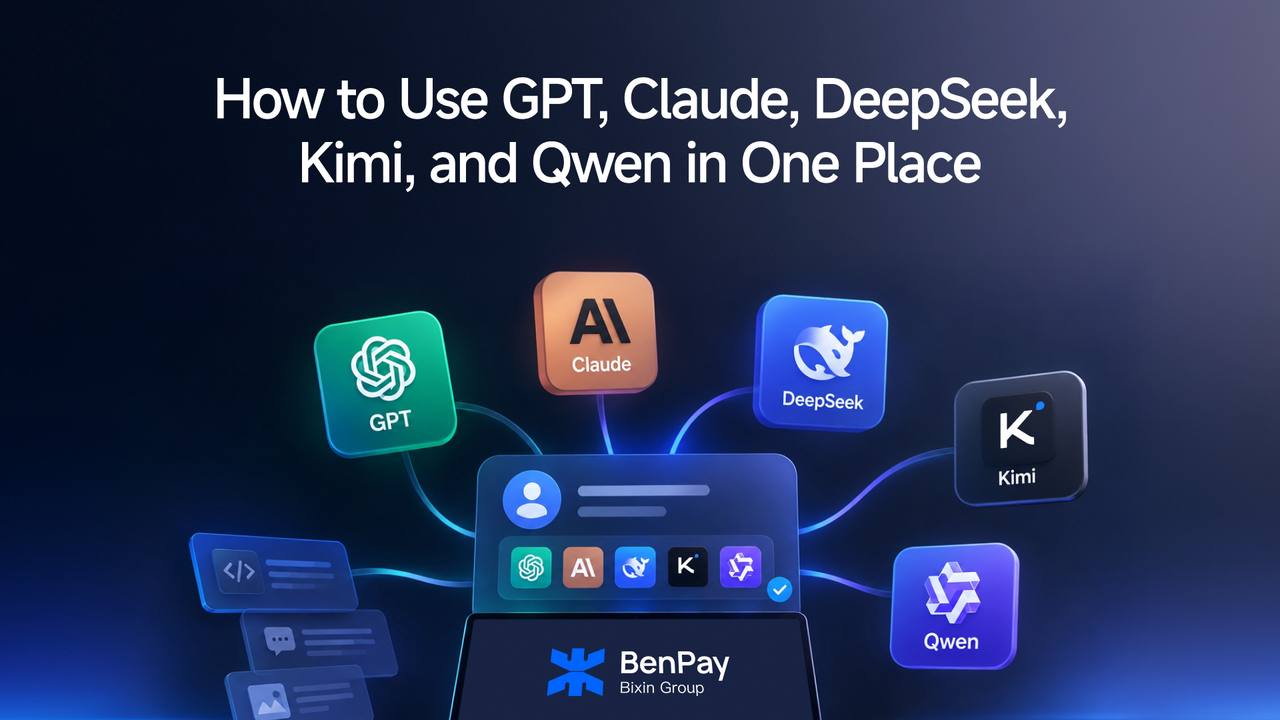
You do not necessarily need separate accounts, API keys, and billing pages to use multiple AI models such as GPT, Claude, DeepSeek, Kimi, or Qwen. BenPay AI API brings API access and usage management for supported models into one account. You can choose a model for your task and connect it through Terminal CLI, a desktop agent, an IDE plugin, or the Universal API.
What Does “Multiple AI Models in One Place” Mean?
In simple terms, it means bringing some repetitive management tasks together.
| What is managed in one place | What this means for you |
|---|---|
| One BenPay account | View your AI API information in one account |
| API key management | Connect tools that support custom APIs; create separate keys for different projects or uses if needed |
| Balance and usage | Review your balance, requests, and usage records in BenPay Workspace |
| Multiple supported models | Choose from the current model list based on your task and tool compatibility |
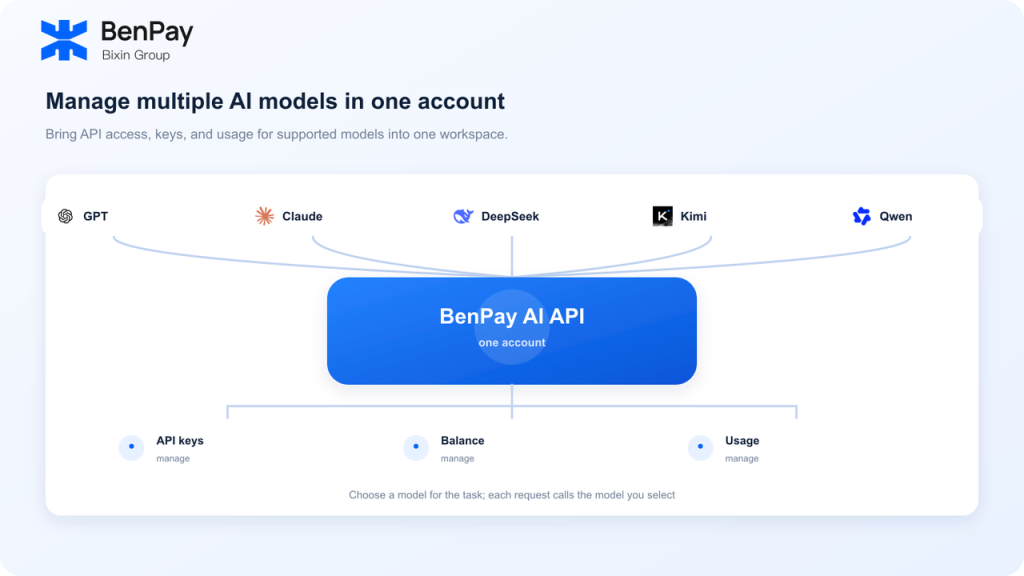
With BenPay AI API, you can manage your API keys, balance, and usage records in one account. You can also create separate keys for different projects or purposes. See the current model list for supported models.
“One place” refers to centralized API access, key management, and usage management. It does not mean that separate models have been combined into one model, or that every model processes the same request at once.
Why Use Multiple Models Through One Account?
Different workflows may call for different models. People may try several models for writing, coding, research, or product development, then choose based on the results, cost, and compatibility with their tools.
If you access each model directly from a different provider, you may need to manage separate accounts, keys, payment methods, and usage pages. An API aggregation service can bring access and usage management for supported models together, reducing the need to switch between platforms.
This does not mean an aggregator is always cheaper than every official API, or that all models support the same features. Before choosing a model, check its current version, price, API format, and capability information.
How Does BenPay AI API Bring Model Management Together?
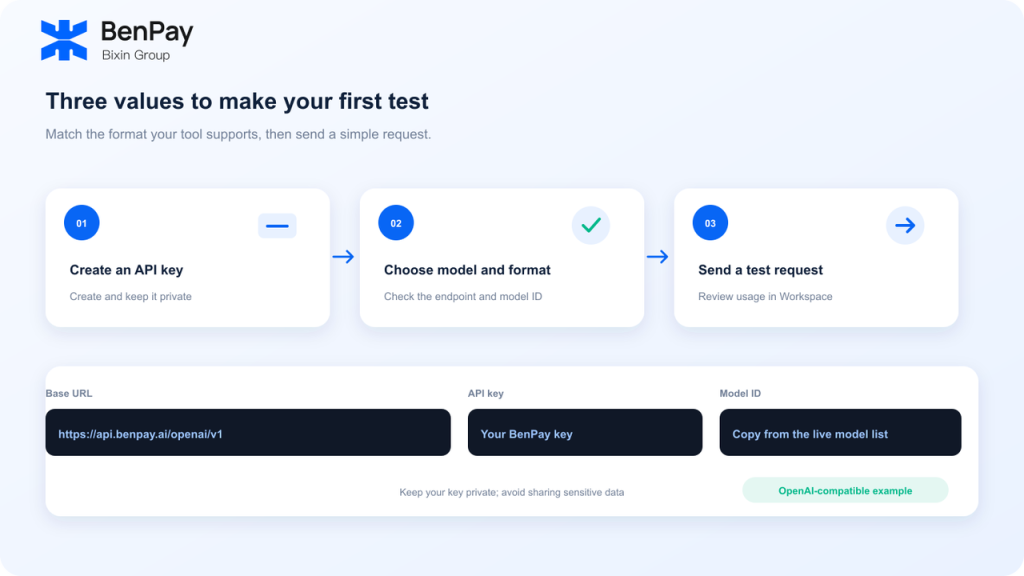
Think of it as a shared access point. Create an API key in your BenPay account, then configure the endpoint and model ID according to the tool you use. Your tool sends requests to the model you select. BenPay Workspace provides a place to manage keys and review usage.
BenPay AI API offers OpenAI-compatible and Anthropic-compatible API formats. These are interfaces for different request formats. Choose the one your tool or code supports; you do not need to configure both for every request. Check the current page and tool instructions for the format supported by a specific model.
If you’re new to the concept of a unified AI API, start with What Is a Unified AI API? to learn how one integration can connect you to multiple models. For more on how these services work and what to consider when choosing one, see the AI API Aggregator Guide.
- API key: The credential your tool uses to connect to the service. Keep it private.
- Base URL: The address your tool sends requests to. It must match the format the tool supports.
- Model ID: The identifier for the model you want to call. Copy the exact value from the current model list.
How Can Beginners Get Started? Choose One of Four Setup Paths
You do not need to understand every API concept before getting started. First decide where you want to connect the model, then follow the instructions for that setup path.
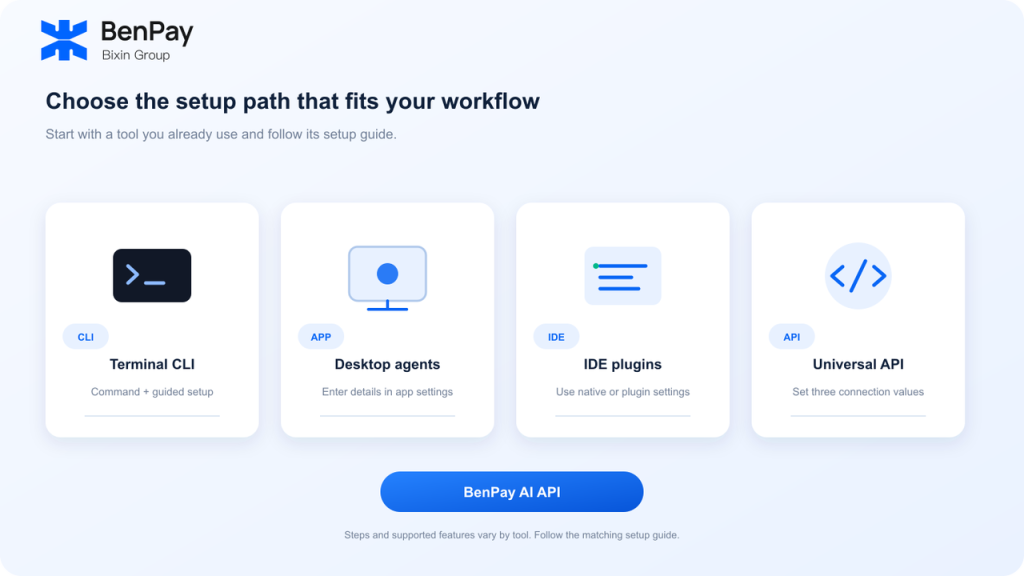
Terminal CLI
For people who already use terminal tools such as Claude Code, Codex CLI, or OpenCode. The BenPay page provides a command and an interactive wizard to guide you through selecting and configuring a tool. This path requires opening a terminal and running the command shown on the page.
Desktop Agents
For people who use AI applications on their desktop. Enter the connection details shown on the BenPay page in the application’s settings. The exact steps vary by application, so follow the instructions for your tool.
IDE Plugins
For people who use AI plugins in development environments such as VS Code. Enter the Base URL, API key, and model ID according to the API format supported by the plugin.
Universal API
For developers and people using other compatible tools. Add the BenPay parameters to your code or tool configuration. This option is more flexible and usually requires some familiarity with API settings.
If you are not sure where to begin, open the BenPay AI API setup guide, choose the tool you already use, and follow its steps. The BenPay integration page provides four setup categories and tool-specific instructions. The exact steps differ between tools.
What Should You Still Check When Using a Multi-Model API?
Not every model or version is automatically available
The platform provides the models currently listed as available. Model offerings may change, so confirm the exact version and Model ID before making a request.
Models do not necessarily support the same features
A successful text request does not confirm support for image input, tool calling, streaming, or other features. Compatibility depends on the model, API format, and tool.
One API key does not mean free access or a fixed monthly fee
BenPay AI API charges based on usage, and prices vary by model. Check current pricing and start with a small number of non-sensitive test requests. To understand how input, output, and caching affect API costs, you can read the AI API Billing and Token Cost Guide.
Requests pass through the API service
If your requests contain personal information, customer data, or trade secrets, review the data-handling and privacy terms of the platform and relevant model providers before sending them.
Who Might Benefit From Managing Multiple Models in One Account?
BenPay AI API may be useful if:
- You switch between several supported models and want to manage API keys and usage in one place.
- You use a terminal tool, desktop app, or IDE that supports a custom API.
- You are building an application and want to call currently supported models through compatible APIs.
- You want to keep usage records for different projects separate by creating different API keys.
If you only use one model through its official chat app and do not need API access or other models, using that app directly may be simpler. If your project depends on the latest native features from a specific model provider, confirm that BenPay’s current interface and model support those features.
Frequently Asked Questions
Can one BenPay API key call multiple models?
BenPay’s Help Center says that one API key can provide access to multiple supported models. Each request still needs to specify the appropriate model for the tool and API format. You can also create separate keys for different projects or uses.
Is this a chat app where I can open GPT, Claude, DeepSeek, Kimi, and Qwen at the same time?
No. BenPay AI API provides API access and usage management. You call models through a supported terminal tool, desktop app, IDE plugin, or your own code. See the setup guide for supported tools.
Can all models use the same API endpoint?
Not necessarily. BenPay AI API offers OpenAI-compatible and Anthropic-compatible interfaces. Choose the one that matches your tool’s request format, and check whether the model supports it.
Is there a fixed monthly fee for using multiple models?
BenPay AI API uses pay-as-you-go pricing. Your cost depends on the model and amount of usage. Check current model prices before making requests, and review actual usage in Workspace.
Will the available GPT, Claude, DeepSeek, Kimi, and Qwen versions stay the same?
Not necessarily. The model list may change as the platform is updated. Refer to the BenPay AI API page for current models, versions, prices, and capabilities.
Start With the Models and Tools You Need
BenPay AI API brings API access, key management, and usage management for supported models into one account. First confirm the specific models you need, then choose Terminal CLI, a desktop agent, an IDE plugin, or the Universal API setup path.
Check the current models and integration options on the BenPay AI API, then test your setup with a simple, non-sensitive request.